Wix Studio Template Set-up: The Manhattan
Digital Marketing
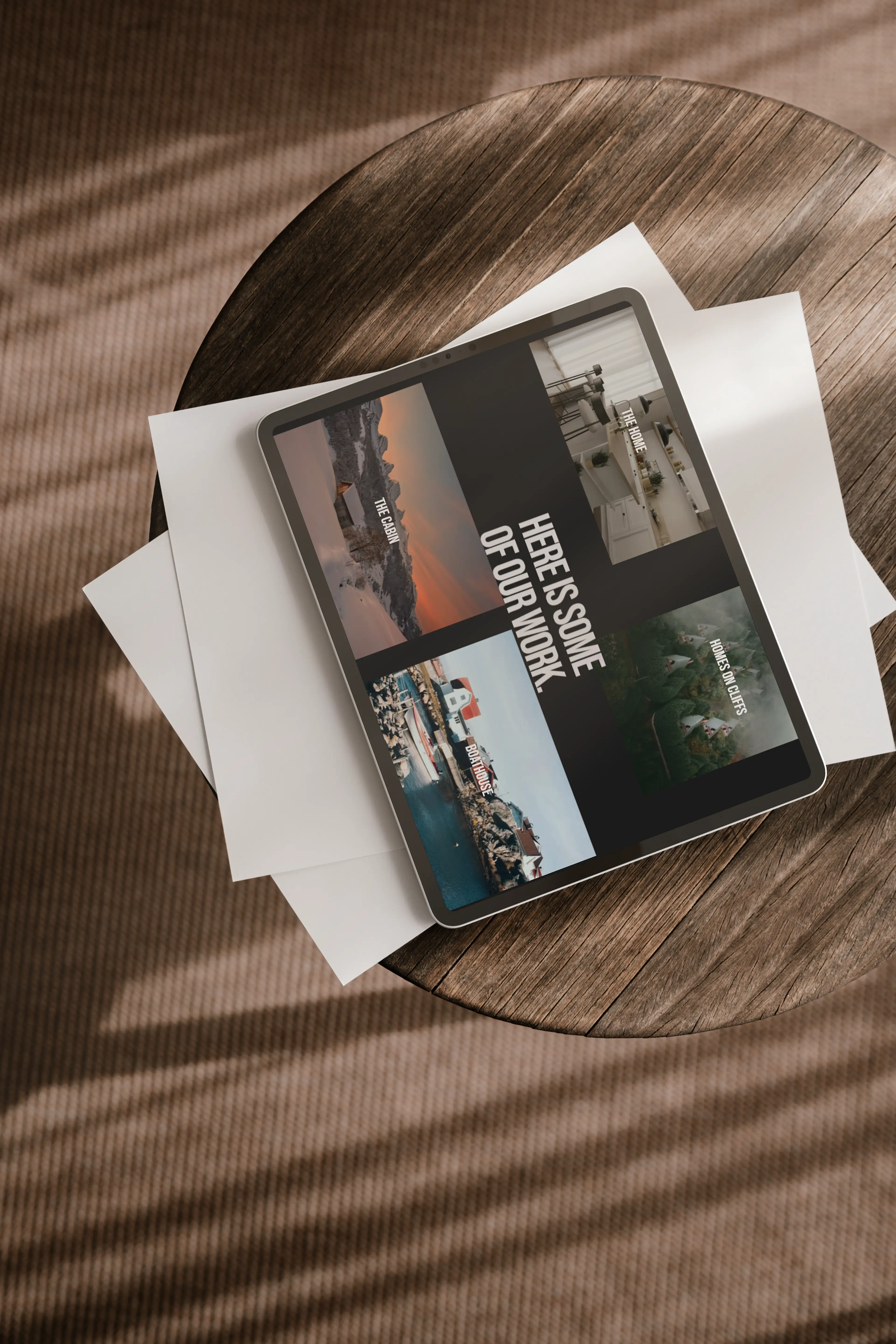
This guide will walk you through the steps to set up and customise The Manhattan Wix Studio Template. You'll learn how to personalise the layout, adjust the colour scheme, integrate your portfolio, and fine-tune each element to reflect your business vision.
You can view the demo of the website template here.
No technical expertise is required - The Manhattan Website Template is designed to be intuitive, enabling you to focus on what matters most: presenting your projects and expertise in a way that resonates with your clients. Areas of the template have text to help prompt your own copy, in a way that is compelling to drive new leads to contact your business.
Firstly, the easiest way to edit the site, out the box is to use content mode. This allows you to change the text and images without affecting the site. Here is the link on how to use it.
The tutorial below shows how to edit the template in the full editor mode, giving you more creative control. If you do accidentally break things, you can always undo or use a backup of the site. You can change the overall styling of the site, including text, fonts and colours using this guide here.
____
Opening Your Wix Studio Template
Once you've purchased the template, you'll immediately receive a ZIP file with your website template and instructions on how to open it: Within the pack, you'll find a "use this template.html".
Opening this will open your browser.
If you're not already logged in to Wix, you'll be asked to sign up or log in to your account.
Agree to the terms and conditions and click the "Add Site" button.
The template will be added to your account as a new site.
Customise your site as you wish, don't forget you get 30 day of email assistance as part of your Wix Studio template purchase!
____
Understanding Sections in The Manhattan Template
When customising the template, it helps to think of your website as being made up of different sections. Each page is built using these sections, which are like the building blocks of your site. Every section can contain different elements like images, text, or galleries, and can be customised to match your brand’s style.
With this template, sections make it easy to structure your content clearly and effectively. You can update each section to reflect the look and feel you want for your business, without getting too technical. Simply select a section, personalise the design, and add the content that showcases your work best.
This flexible approach ensures that your site is visually appealing and tailored to your needs, while keeping the setup process straightforward and intuitive.
____
Homepage
Changing Your Logo
Change the Name:
Click the text box
Edit Text
Change the name
Changing Hero Images
Each of the images on the hero section of the home page is an image within a series of containers. The containers provide the animations, and help keep the design responsive on both tablet and mobile. Therefore I'd suggest you use the layers on the left hand side to dig down into the image files, and then click those to change the images. These images & the overlay text are linked to their respective pages; Projects, Studio, Services and Blogs.
Editing Text
Simply, edit your text and copy as you go through the site:
Click the text box
Edit Text
Ctrl + A to select all off the text, then delete.
Replace with your own text
Editing Buttons
By clicking on the buttons, you'll be able to change the text within, and also where the buttons link to. I would check the layers to ensure you've clicked through correctly past the containers to get to the button editor.
Editing the Project Slider
The second section is set within a 3-part slider showcasing three different projects.
First click, within the section, then into the slideshow repeater.
On the right hand side, you'll see the manage button, click this and it'll show 3 items.
Each of these items is one of the slides. Click through them, and edit the content accordingly.
Editing the Services Section
The services page features hover effects, to edit the service and text, use the layers to click through to the text. The text is set out in top-to-bottom order of the services.
Changing Backgrounds for Call to Action Sections
Some call to actions and stretched banners have a background set. You can change them easily by clicking into the section, then changing the background via the inspector panel to the right hand side.
____
Our Studio
Within this page, all you need to do is update the text and images, just as you have done on the homepage as above!
____
Our Works
Editing the Gallery Images
The project pages are set up as a gallery, so all you need to do to update, remove or add projects is go to "manage media".
This will open up the media manager page.
Once you have this open, each of the images is essentially a link to your specific project page. You can also change the title within the gallery editor. This will be your project name. You should also ensure these images link to the correct project page.
____
Project Pages
Quick to Edit
Each of the project pages is set up to be simple, and easy to edit. Two columns, the left hand side has a pro gallery, similar to the works pages. Insert as many images as you need and it'll auto populate and adjust. In the right hand side, this is where your project information is - edit this to suit. Once you've done that you're all done! 8 Pages have been set up, if you need to duplicate more, just go to manage pages, and create more.
____
Press & Awards
This page consists of a series of repeaters, these can be double clicked into and edited to suit.
____
Blogs
All of the blog pages have been styled, ready for you to write some beautiful blog posts.
Simply edit the blogs from your Wix dashboard, or if you're editing the site, you can click on the blog posts and "manage blog".
____
Privacy Policy
Make sure you go into these pages and edit the text with your own Privacy Policy.
____
If you have any questions, just email us at hello@architecturetemplates.co.uk Don't forget, you get 30 days of email assistance with your purchase.
Written by Tim, Architecture Templates

The Author
Tim Willment is a UK-based RIBA and ARB-registered architect, and founder of a boutique architecture and interior design studio he runs with his wife. With over a decade of experience, he helps designers build efficient workflows that maximise profit, attract better clients, and create a more balanced work-life.
His goal is simple: to create a better experience for both designer and client - building win-win businesses that are unforgettable.
Rather than offering mentorship or coaching, Tim shares proven templates and systems - the same ones he uses in his own practice - to help other small studios streamline their processes and focus on high-value design work.
Any questions, email him direct at tim@architecturetemplates.co.uk